
7 Best Wireless Mice for CAD Precision for Steady Work
Find your perfect wireless mouse for CAD precision. Boost steady work with our top 7 picks. Shop now for ultimate control!
Precision is the foundation of every successful home project, whether designing a kitchen renovation or drafting complex woodworking plans. A high-quality wireless mouse serves as the primary bridge between a creative vision and a digital reality, directly impacting speed and accuracy. Choosing the right tool ensures that long hours spent in CAD software remain productive rather than physically taxing.
Logitech MX Master 3S: The Gold Standard for CAD
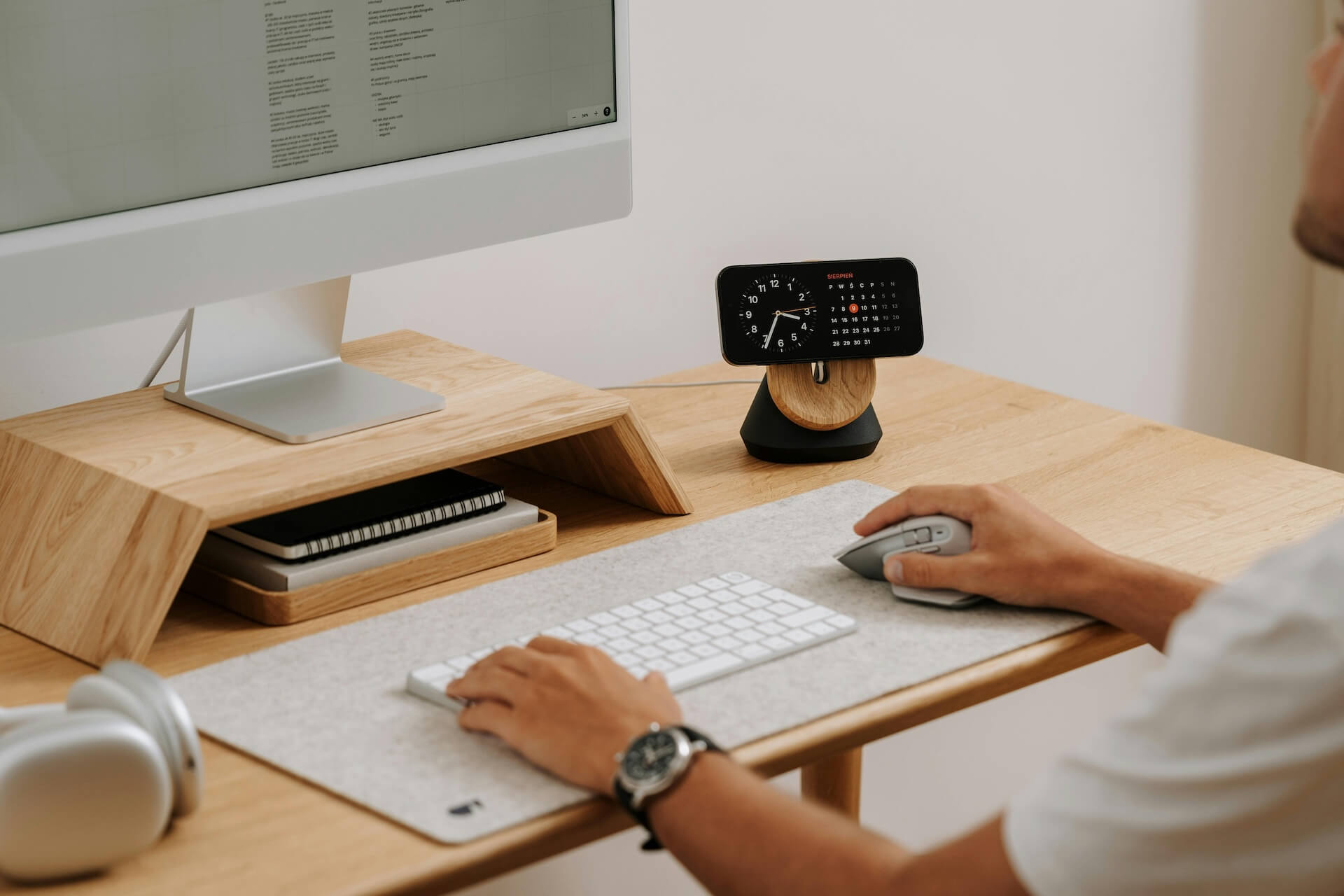
For the homeowner managing complex architectural files on a dedicated home office desk, the MX Master 3S offers the most refined experience available. Its heavy, sculpted frame provides ample support, which is critical when navigating intricate 3D models for hours at a time. The electromagnetic scroll wheel moves with silent precision, allowing for rapid movement through large project layers without the annoying clicking sounds of standard mice.
Beyond the hardware, the software integration allows for deep customization of every button to match common CAD commands like zoom, pan, or rotate. While the size can feel substantial for those with smaller workspaces or tighter desk configurations, it remains the industry benchmark for a reason.
Bottom line: It is a premium investment for those who spend the majority of their day modeling and require maximum ergonomic support.
3Dconnexion CadMouse Pro: For the Serious User
When precision is the only priority for a professional-grade home workshop or design studio, the CadMouse Pro stands out as a purpose-built tool. Unlike general-purpose mice, this device includes a dedicated middle button that makes clicking and dragging significantly easier in programs like AutoCAD or SolidWorks. It is designed to be used on a wide variety of surfaces, making it versatile for both expansive desks and smaller, temporary work areas.
The mouse is engineered specifically to reduce the repetitive strain often associated with frequent clicks in drafting software. While the initial learning curve for the dedicated software might be steeper for casual users, the long-term efficiency gains are undeniable.
Bottom line: Choose this if the primary use case is heavy-duty CAD work where specialized button mapping outweighs general aesthetic appeal.
Logitech Lift: Best Vertical Grip for Comfort
Homeowners dealing with wrist fatigue or limited desk space often find relief in the vertical orientation of the Logitech Lift. By placing the hand in a natural “handshake” position, it significantly reduces the pressure on the carpal tunnel, which is essential for those who split time between design work and other household tasks. Its compact footprint makes it an excellent choice for shared desks or smaller apartment nooks where space is at a premium.
While vertical mice require a short adjustment period, the comfort benefits for mid-day marathon sessions are immediate. It is battery-operated rather than rechargeable, which simplifies travel but requires keeping a spare set of AAs in the junk drawer.
Bottom line: This is the most practical choice for users focused on ergonomic health without needing a full-sized, heavy-duty peripheral.
Razer Pro Click: Ergonomic for All-Day Work
If the home office doubles as a high-traffic area, the Razer Pro Click offers a sturdy, balanced design that bridges the gap between office productivity and casual use. Its ergonomic slope is slightly more aggressive than a standard mouse, providing a comfortable arch that supports the palm during extended drafting sessions. The build quality feels solid, ensuring it can withstand the wear and tear of a busy household.
The sensor is exceptionally sensitive, which is perfect for high-resolution displays often used in modern design work. Because it is slightly larger in profile, it is best suited for desks with sufficient room for broad, smooth mouse movements.
Bottom line: A reliable, well-built option for the multi-purpose home office where comfort and tracking accuracy are equally vital.
Logitech MX Anywhere 3S: Precision on the Go
For the homeowner who frequently moves between the kitchen table, the home office, and even the local coffee shop, the MX Anywhere 3S offers unparalleled portability. Despite its small stature, it retains the high-end sensor precision of its larger counterparts, ensuring that CAD tasks remain accurate regardless of the surface. It is small enough to tuck into a drawer or a laptop bag without cluttering a workspace.
The trade-off for this convenience is its size, which may feel cramped for those with larger hands during long-term use. However, for quick edits or mobile drafting, the durability and seamless wireless connectivity make it a top-tier choice for active living situations.
Bottom line: The ultimate choice for the mobile user who refuses to sacrifice precision for portability.
Anker Vertical Mouse: An Affordable Wrist-Saver
Budget-conscious homeowners who want to experience the benefits of an ergonomic design without the high price tag of premium brands should consider the Anker Vertical Mouse. It provides the same essential “handshake” grip as more expensive models, helping to alleviate wrist pain during repetitive tasks. While the materials feel less luxurious, the performance is remarkably reliable for the price.
It is an ideal entry point for someone who is unsure if a vertical mouse fits their workflow. Because it is an affordable option, it serves as a risk-free way to test whether changing hand posture solves common aches.
Bottom line: A practical, no-frills solution that prioritizes health and affordability over advanced bells and whistles.
Logitech M720 Triathlon: A Dependable Workhorse
The M720 Triathlon is designed for the household where one computer is shared among family members for school, work, and creative projects. Its standout feature is the ability to switch between three different devices at the touch of a button, keeping the desk free of multiple input devices. The rubberized grips are durable and provide a secure feel, even after years of daily use.
This mouse does not have the high-end precision sensors of the Master series, but it offers a robust, reliable experience that survives the chaotic environment of a busy home. It is a workhorse that keeps things simple and organized.
Bottom line: The best multi-device solution for busy homes where space-saving and utility take priority over specialized CAD features.
Finding the Right Mouse Shape for Your Hand Size
The comfort of a mouse is almost entirely dependent on how well it fits the contours of the hand. A mouse that is too small for a large hand will lead to cramping, while a mouse that is too large can make navigating around a screen feel clumsy. Measure the distance from the base of the palm to the tip of the middle finger to get a baseline for size.
- Small Hands (Under 17cm): Look for compact models like the Logitech MX Anywhere 3S or Logitech Lift.
- Medium/Large Hands (Over 18cm): Opt for full-sized, sculpted options like the Logitech MX Master 3S or the CadMouse Pro.
- Neutral/Adjustable: Vertical mice generally offer a more forgiving fit because they rely on the side of the hand rather than the palm arch.
Bottom line: Always prioritize the physical fit, as even the most expensive mouse will cause discomfort if it does not match the user’s anatomy.
Do You Need Extra Buttons for Your CAD Work?
In CAD environments, speed is often dictated by how many shortcuts can be triggered without moving the hand back to the keyboard. Extra thumb buttons and gesture-based surfaces allow the user to assign critical commands like “Undo,” “Rotate,” or “Layer Visibility” to the mouse. For those doing serious 3D modeling, these buttons are not just a convenience—they are a significant time saver.
However, too many buttons can also lead to accidental clicks if the layout is not intuitive. Consider which commands are used most frequently and ensure the mouse software supports remapping those specific keys.
Bottom line: If a CAD workflow involves repetitive menu diving, investing in a mouse with programmable buttons is a high-impact upgrade.
What Is DPI and How Much Do You Really Need?
DPI, or “dots per inch,” measures how far the cursor moves on the screen for every inch the mouse moves on the pad. For most CAD work, a very high DPI is not necessary, as accuracy and steady lines are more important than explosive speed. A mouse with adjustable DPI allows for a lower, more controlled setting that provides the stability required for drafting precise dimensions.
Most modern wireless mice offer more than enough DPI for even the most demanding architectural software. Rather than chasing the highest number on the box, look for a sensor that tracks consistently across different materials, such as wood, glass, or fabric.
Bottom line: Consistency and tracking reliability are far more important than extreme DPI ratings for steady, professional CAD work.
Selecting a wireless mouse for CAD involves balancing the need for physical comfort, software functionality, and the constraints of a home workspace. By prioritizing the fit and features that address specific daily frustrations, any homeowner can transform their drafting experience into a more efficient, less taxing process. Choosing a reliable, well-suited tool provides the stability needed to see complex projects through to completion.
