
7 Best Compact Webcams for Small Home Offices
Maximize your workspace with our top 7 compact webcams. We review the best small-footprint cameras that deliver professional video quality for home offices.
Setting up a professional workspace in a cramped apartment or a shared family room requires equipment that doesn’t dominate your limited real estate. A reliable webcam is the bridge between you and your colleagues, ensuring you look polished without needing a dedicated studio. These seven compact options balance performance with a small footprint to keep your desk clutter-free.
Logitech C920s Pro: Best Overall for Small Desks


If you are working from a small folding table or a shared kitchen nook, you need a camera that just works without taking up precious space. The Logitech C920s Pro has been a staple in home offices for years because it offers a perfect balance of reliability and size. It sits comfortably on top of almost any monitor or laptop, and its privacy shutter is a must-have for those living in busy, multi-person households.
While it doesn’t offer 4K resolution, its 1080p output is more than enough for daily Zoom calls and virtual parent-teacher conferences. The autofocus is snappy, and the color reproduction is consistent, meaning you won’t have to fiddle with settings every time you sit down to work. It’s a "set it and forget it" tool that respects both your budget and your limited desk area.
The bottom line is that the C920s Pro is the most practical choice for most homeowners. It is durable, compact, and provides a professional look without the high price tag of more complex systems.
Razer Kiyo Pro: Superior Low-Light Performance
Many home offices are tucked into corners or spare bedrooms that lack natural light, making it hard to look clear on camera. The Razer Kiyo Pro excels here, as it features a high-performance light sensor that adapts beautifully to dim environments. If your desk faces away from a window or you often work during late-evening hours, this camera will keep your image bright and noise-free.
Because it doesn’t require a bulky ring light attached to your monitor, it keeps your setup looking clean and minimalist. The camera is slightly larger than a standard webcam, but its ability to handle shadows and low-light conditions often saves you from needing to buy additional lighting gear. It’s a smart space-saver for those who prioritize image quality over a tiny form factor.
If you struggle with grainy video in your home office, this is your best investment. It trades a bit of size for significantly better performance in challenging lighting situations.
Insta360 Link: Best AI-Powered Compact Webcam

For those who move around while presenting or need to show physical documents on a desk, the Insta360 Link is a game-changer. It is a motorized, gimbal-mounted camera that automatically tracks your movement, keeping you perfectly centered in the frame. This is incredibly helpful if you are a teacher recording lessons or a professional who likes to stand while brainstorming.
The AI features include a "Desk View" mode, which tilts the camera down to show your workspace, perfect for showing notes or sketches to remote team members. It is compact enough to clip onto a monitor, yet it acts like a high-end production camera. While it is a more expensive option, its ability to replace multiple pieces of equipment makes it a great value for those who need versatility.
This camera is ideal for those who need a dynamic, high-tech solution in a small space. It is a premium product, but the ease of use and automated tracking are unmatched for active presenters.
Anker PowerConf C200: Great 2K Resolution Pick
Experience sharp 2K video and crystal-clear audio with AI noise cancellation. This webcam features adjustable field of view and a built-in privacy cover for seamless, secure video calls.

If you want a sharper image than a standard 1080p camera without the massive file sizes of 4K, the Anker PowerConf C200 is a fantastic middle ground. It delivers crisp 2K video that makes your presentations look significantly sharper on high-resolution monitors. Its small, blocky design is very unobtrusive, making it perfect for thin laptop bezels or slim monitor stands.
One of the standout features is the adjustable field of view, which lets you decide how much of your background to show. If you are working from a messy room, you can narrow the view to focus solely on you, hiding the clutter behind you. It also features a built-in privacy cover that slides over the lens, providing peace of mind for those with roommates or children.
For the price, the C200 offers a professional upgrade in clarity that is noticeable on every call. It is a reliable, no-nonsense tool that fits into any home office setup.
Microsoft Modern Webcam: Simple Plug-and-Play

Sometimes you just want a camera that connects to your computer and works instantly without needing to download complex software. The Microsoft Modern Webcam is designed for exactly that, offering a clean, user-friendly experience for busy professionals. It is incredibly slim, making it an excellent choice if you have a very tight shelf or a monitor with a narrow top edge.
The camera is certified for Microsoft Teams, meaning it integrates seamlessly if your workplace relies on that platform. The color balance is natural and flattering, which is helpful if you don’t have time to adjust your video settings before a meeting. It is a straightforward, reliable piece of hardware that focuses on stability over flashy features.
If you prioritize simplicity and ease of use, this is the camera for you. It is a budget-friendly option that avoids the headaches of complicated installations.
Dell UltraSharp Webcam: Best for Professionalism
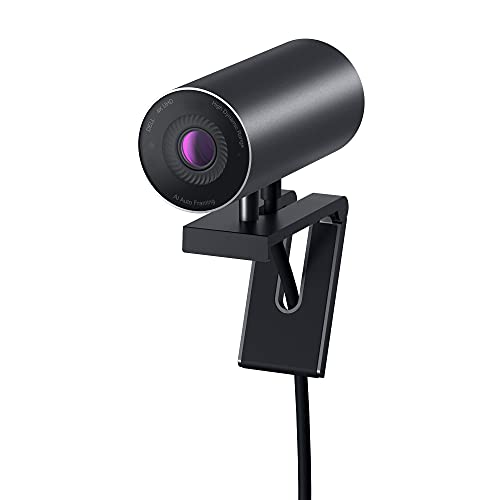
The Dell UltraSharp is designed for those who want a high-end look without a bulky setup. It uses a large sensor that captures excellent detail and handles high-contrast lighting—like a bright window behind you—better than almost any other compact webcam. Its magnetic mounting system is a highlight, allowing you to snap it onto your monitor or a tripod with zero effort.
This camera looks and feels like a premium product, and the image quality reflects that. It excels at skin tone accuracy, which is a major benefit for professional meetings where you want to look your best. While it lacks an integrated microphone, most professionals prefer using a separate headset or dedicated desk mic anyway, making this a non-issue for a serious home office.
This is the choice for homeowners who want studio-quality video without the hassle of a complex camera rig. It is an investment in your professional image that pays off in every meeting.
Elgato Facecam: Best for High-End Video Quality
The Elgato Facecam is built for those who take their video calls or content creation seriously. Unlike many webcams that process the image internally and often make it look "soft," the Facecam sends an uncompressed signal to your computer. This results in the sharpest, most accurate video possible, provided you have a decent lighting setup to support it.
It is a bit larger than the other cameras on this list, so ensure you have a sturdy monitor mount or a small tripod. The software allows for granular control over your image, letting you adjust exposure, contrast, and saturation to get the exact look you want. It is essentially a professional camera packed into a webcam form factor.
If you are comfortable with a bit of technical setup, the Facecam offers the best visual fidelity on the market. It is the ultimate tool for those who want to look like they have a full production crew in their office.
Key Factors to Consider Before Buying a Webcam
When selecting a webcam for a small home office, start by evaluating your specific environment. Consider the following:
- Mounting options: Do you have a thin monitor bezel or a thick, chunky frame? Ensure the camera’s clip can accommodate your specific display size.
- Privacy needs: If your office is in a high-traffic area of the house, prioritize models with physical privacy shutters.
- Lighting conditions: Assess your room; if it’s dark, look for cameras with large sensors or high-performance low-light capabilities.
- Microphone quality: If you don’t own a separate headset, ensure the webcam has a decent built-in microphone, though external audio is almost always better.
Remember that the most expensive camera won’t save you if your room is poorly lit or your desk is unstable. Always account for the weight of the camera; if you have a wobbly monitor arm, a heavy camera might cause the screen to tilt downward. Choose the camera that fits your physical space first, and your performance needs second.
How to Optimize Lighting for Small Home Offices
Good lighting is more important than the resolution of your webcam. Even a mid-range camera will look professional if you are well-lit, while a 4K camera will look grainy in a dark room. Start by positioning your desk so that a window is in front of you, not behind you, to avoid a silhouette effect.
If you don’t have natural light, consider a small, dimmable LED desk lamp or a compact ring light that clips to your monitor. Aim the light slightly above your eye level and angled downward to avoid harsh shadows under your eyes. This simple adjustment will make a bigger difference in your video quality than spending hundreds on a new camera.
If you are working in a rental where you cannot mount lights to the wall, look for "clamp-on" lights that attach to the edge of your desk. These are non-destructive and can be moved around easily as your workspace needs evolve.
Troubleshooting Common Webcam Connection Issues
If your camera isn’t being recognized, the first step is always to check the USB connection. Avoid using cheap USB hubs if possible, as they often don’t provide enough power for high-definition webcams to function correctly. Plug the camera directly into a port on your computer tower or laptop whenever you can.
If the image is flickering, it is often a conflict between the light frequency in your room and the camera’s refresh rate. Go into your webcam’s software settings and toggle the "Anti-Flicker" or "Frequency" setting between 50Hz and 60Hz until the lines disappear. This is a common issue in homes with older LED or fluorescent lighting.
Finally, if your video looks blurry, check the lens for dust or fingerprints. It sounds obvious, but a quick wipe with a microfiber cloth is the most common "fix" for webcam issues. Keep your lens clean and your drivers updated, and your camera will serve you well for years.
Choosing the right webcam is about finding the balance between your available space and the quality you need to feel confident on camera. Whether you prioritize simple plug-and-play functionality or high-end image clarity, there is an option here that will elevate your home office setup. Remember that a clean lens and good lighting are your best tools for looking your best, regardless of which model you choose.
